ThingsEye Diagnosis App
NB-IoT / LoRa Device Diagnostic Link Guide
This page provides the user manual and release packages for the ThingsEye Diagnosis App v1.0.1.
Download Files
| File | Description |
|---|---|
| Device-Diagnostic User Manual v1.0.1 | Word user manual for NB-IoT / LoRaWAN diagnostic workflows |
| ThingsEye Diagnosis Setup v1.0.1 x64 | Windows x64 installer package |
| ThingsEye Diagnosis Portable v1.0.1 x64 | Windows x64 portable package, no installation required |
| ThingsEye Diagnosis-1.0.1 Mac | Mac ARM64 installer package |
Product Overview
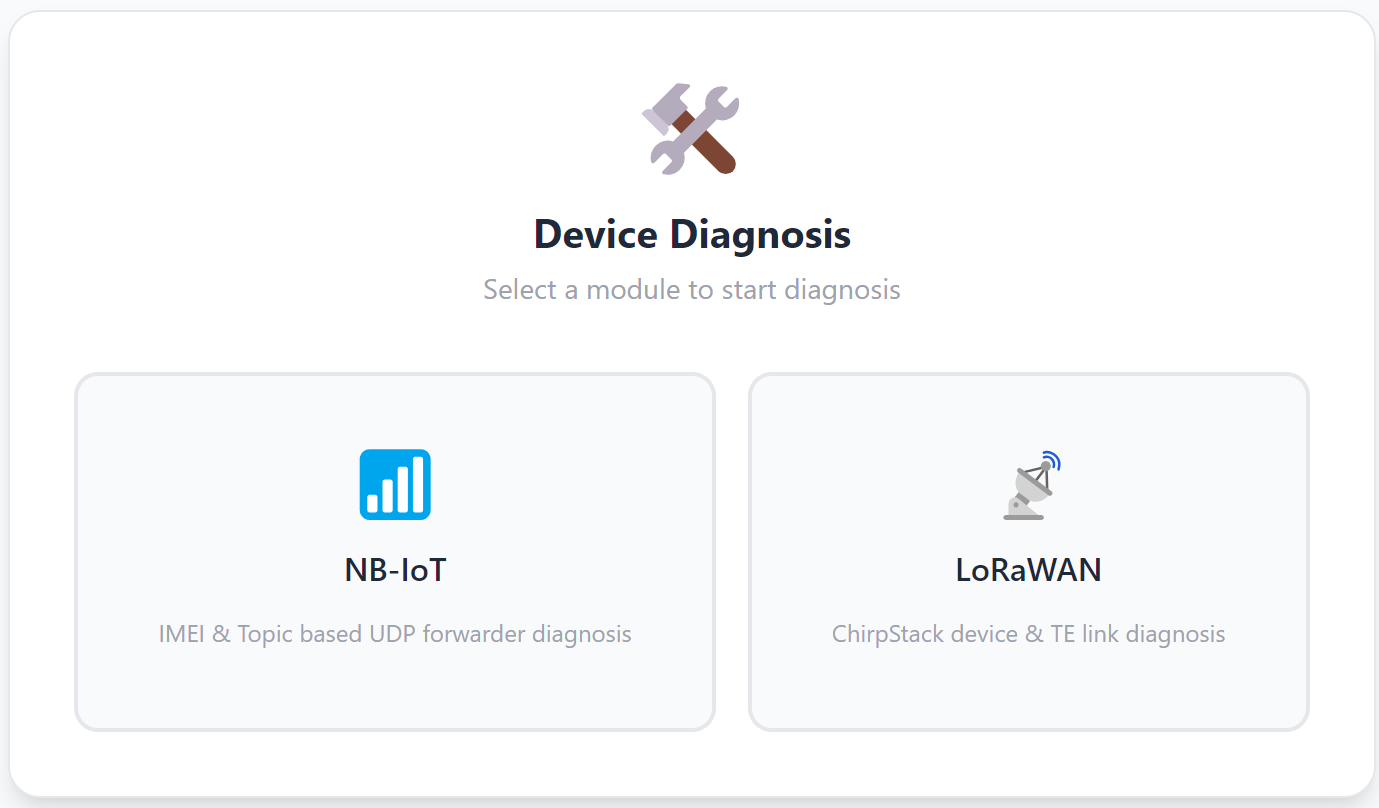
The ThingsEye Diagnosis App helps users quickly identify data link connectivity issues with their devices. After logging in with the ThingsEye primary tenant account and password, users can choose between NB-IoT device diagnosis and LoRaWAN device diagnosis.
Based on the selected device type, the system automatically checks the complete diagnostic link from device onboarding and platform integration to data conversion and telemetry storage in ThingsEye. Each module displays an independent status so users can quickly locate where the data link is interrupted.
Version Notes
- For Windows, both a portable version and an installer version are available.
- For Mac, only the portable version is currently available.
- To officially distribute the Mac version, Developer ID signing and notarization are required to reduce Gatekeeper security prompts and slow startup issues.
- Due to privacy-related integration issues with the multi-platform backend during diagnosis, device queries are currently supported only for the primary tenant administrator account.
- Users with subordinate accounts should contact the primary administrator for diagnostic assistance.
App Versions and Operating Modes
| Platform Type | Version Type | Delivery File | Operating Method |
|---|---|---|---|
| Windows | Installed Version | ThingsEye_Diagnosis_Setup_1.0.1_x64.zip | Extract the zip file, run the installer, and then open the program from the Start menu or desktop shortcut. |
| Windows | Portable Version | ThingsEye_Diagnosis_Portable_1.0.1_x64.zip | Extract the zip file and double-click ThingsEye Diagnosis.exe to run the program. |
| Mac | Portable Version | ThingsEye Diagnosis-1.0.1-arm64-mac | Extract the package and open ThingsEye Diagnosis Core to run the program. |
Note: The downloadable files on this page are the Windows installer package and Windows portable package. For Mac package delivery, please contact the ThingsEye team if needed.
Login and Diagnosis Portal
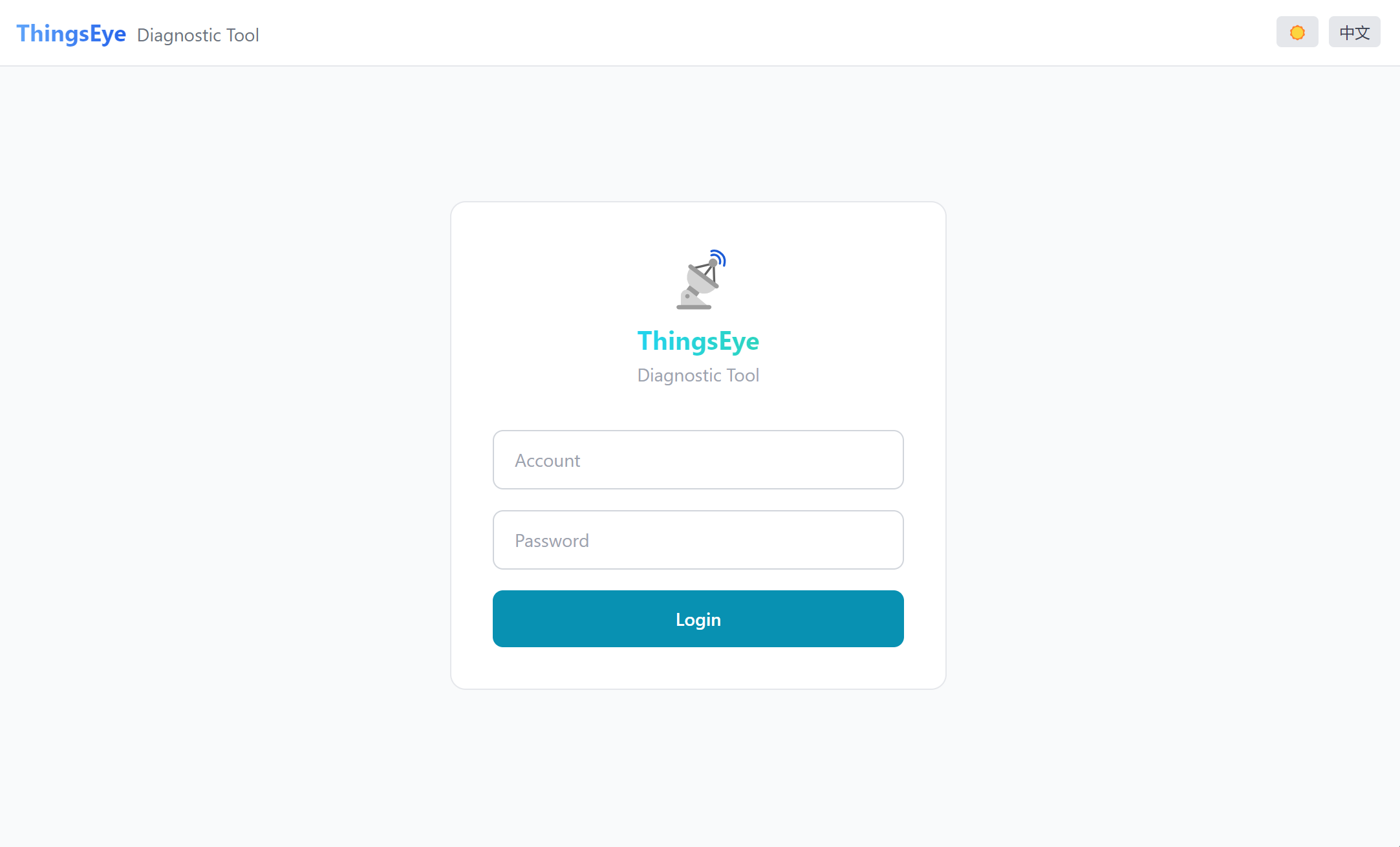
- Open the ThingsEye Diagnosis App and go to the login page.
- Enter the ThingsEye username and password for the primary tenant.
- After logging in, select the device type you want to diagnose: NB-IoT or LoRaWAN.
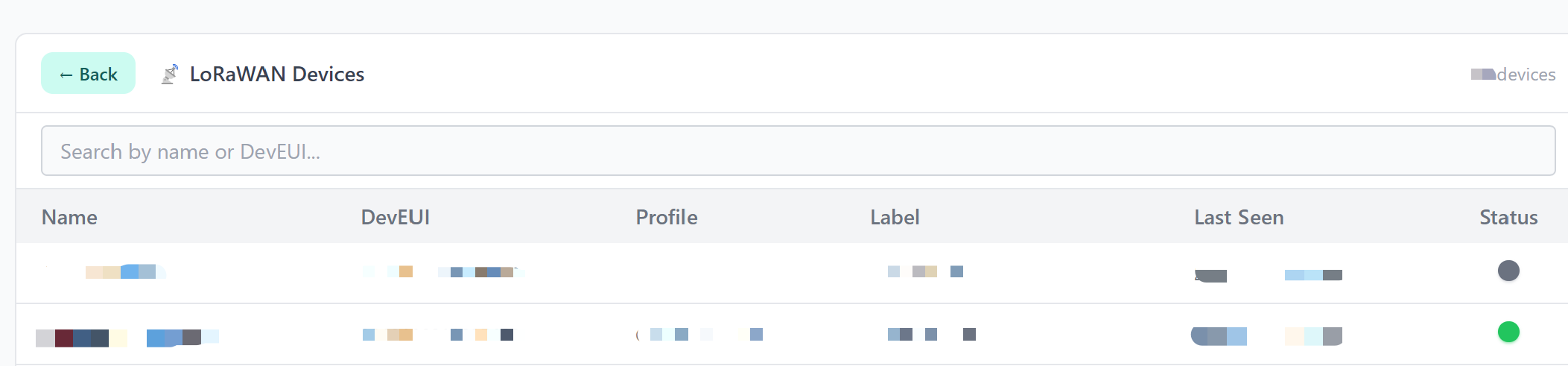
- Follow the on-screen prompts to enter or select a device.
- Click Diagnose to view the diagnostic result of each link node.
Screenshots

NB-IoT Device Diagnostic Links
NB-IoT device diagnostics check the following path:
UDP Forwarder → TE Integration → TE Converter → TE Device
| Link Node | Check Item | Meaning |
|---|---|---|
| UDP Forwarder | Checks whether IMEI, Topic, Ack Required, and forwarding records exist. | Confirms that the NB-IoT device has been forwarded by the UDP Forwarder. |
| TE Integration | Checks whether data has entered ThingsEye Integration and queries recent Integration events. | Confirms whether data has reached the ThingsEye integration entry point. |
| TE Converter | Checks whether data received by Integration has been parsed and converted by the Converter. | Confirms whether the raw payload can be converted into ThingsEye telemetry. |
| TE Device | Checks for an exact match between the IMEI and the ThingsEye device name, device existence, telemetry, and last update time. | Confirms whether the final data has been added to the ThingsEye device data. |
4.1 UDP Forwarder
The UDP Forwarder module confirms whether the NB-IoT device has a valid forwarding record. It checks whether the IMEI, topic, Ack Required setting, and forwarding records are present.
Important: UDP Forwarder registration and ThingsEye Device existence are separate checks. Even if the ThingsEye Device does not exist, the UDP Forwarder can still be marked as Pass as long as a correct forwarding record exists.
4.2 TE Integration
The TE Integration module checks whether device data has entered ThingsEye Integration. If matching Integration events are found, the module can be marked as Pass. If no event is found but the device already has telemetry, the module may show No Event.
4.3 TE Converter
The TE Converter module checks whether the Integration payload has been parsed and converted into ThingsEye telemetry. If conversion events exist, the module can be marked as Pass. If no Converter event is found but the device has telemetry, the result may show No Event.
4.4 TE Device
The TE Device module checks whether the ThingsEye device exists and whether telemetry is available. For NB-IoT devices, the device lookup requires an exact match between the device IMEI and device.name.
LoRaWAN Device Diagnostic Links
LoRaWAN device diagnostics check the following path:
ChirpStack → ChirpStack Uplink → TE Integration → TE Converter → TE Device
| Link Node | Check Item | Meaning |
|---|---|---|
| ChirpStack | Checks whether the device is registered. | Confirms that the LoRaWAN device has been correctly created in ChirpStack. |
| ChirpStack Uplink | Checks the last uplink time, uplink frame count, and whether ChirpStack has received data. | Confirms that the LoRaWAN network has received uplink data from the device. |
| TE Integration | Checks whether data has entered ThingsEye Integration. | Confirms whether ChirpStack data has entered the ThingsEye integration gateway. |
| TE Converter | Checks whether the uplink payload has been parsed and converted by the ThingsEye Converter. | Confirms whether the payload can be converted into ThingsEye telemetry. |
| TE Device | Checks whether the target ThingsEye device exists and whether telemetry is available. | Confirms whether data has finally reached the ThingsEye device. |
5.1 ChirpStack
The ChirpStack module checks whether the LoRaWAN device exists in ChirpStack. If the device is registered, this module can pass even when downstream ThingsEye modules fail.
5.2 ChirpStack Uplink
The ChirpStack Uplink module checks whether ChirpStack has received uplink data from the device, including the last uplink time and uplink frame count.
5.3 TE Integration
The TE Integration module checks whether ChirpStack data has entered ThingsEye Integration. If no matching event is captured but the ThingsEye device has telemetry, the status may show No Event.
5.4 TE Converter
The TE Converter module checks whether the uplink payload has been converted into ThingsEye telemetry. If no matching Converter event is captured but the device already has telemetry, the status may show No Event.
5.5 TE Device
The TE Device module checks whether the ThingsEye device exists and whether telemetry has been received. If the device has historical telemetry but no recent telemetry, the module may show Pass(offline).
Diagnostic Link Modules and Color Meaning
| Status | Color | Icon | Display Text | Meaning |
|---|---|---|---|---|
| Passed | Green | ✓ | Pass | The current module has passed the check and the link status is normal. |
| Offline but passed previously | Gray-blue | ? | Pass(offline) | The TE Device has historical telemetry, but no new telemetry has been received for over 48 hours. |
| No Events but Device Has Data | Yellow | ? | No Event | Integration / Converter has no current event, but the TE Device already has telemetry. This commonly happens when Debug is not enabled or no recent events were captured. |
| Fail | Red | × | Fail | There are no matching events and no telemetry, so the system cannot verify that data has entered ThingsEye. |
Integration / Converter Debug and Events Explanation
7.1 Diagnostic Logic
Integration and Converter diagnosis depends on event records captured by the platform. If Debug is enabled and matching events are found, the module displays Pass. If no event is captured but the device already has telemetry, the module displays No Event instead of directly failing.
7.2 Events Display Rules
| Situation | Display Status | Meaning |
|---|---|---|
| No events, but the device has telemetry | Yellow ? / No Event | Device data was successfully sent to ThingsEye at some point, but no Integration or Converter event has been captured at this time. |
| No events and no telemetry from the device | Red × / Fail | There is no evidence that data has entered ThingsEye; the connection may have failed. |
| Still no events after enabling Debug | Continue troubleshooting | Check device reporting, UDP Forwarder / ChirpStack, Topic / DevEUI / IMEI, Integration configuration, Converter binding, and payload format. |
Link Diagnosis and Troubleshooting Sequence
8.1 LoRaWAN Devices
- Confirm the device is registered in ChirpStack.
- Confirm ChirpStack has received uplink data.
- Check whether TE Integration has a matching debug event.
- Check whether TE Converter has a matching debug event.
- Confirm the TE Device exists and has received telemetry.
8.2 NB-IoT Devices
- Confirm the UDP Forwarder registration and topic are correct.
- Confirm the IMEI and topic are exact.
- Check whether TE Integration has a matching debug event.
- Check whether TE Converter has a matching debug event.
- Confirm the TE Device name exactly matches the device IMEI.
- Confirm the TE Device has received telemetry.
Examples of Diagnostic Status
9.1 Examples of NB-IoT Device Diagnostic Statuses
9.1.1 NB-IoT: Entire Link Shows Pass

Figure 1: NB-IoT full-link Pass.
When UDP Forwarder, TE Integration, TE Converter, and TE Device all show Pass, the full NB-IoT diagnostic link is working normally.
9.1.2 NB-IoT: First Three Sections Pass, TE Device Shows Pass(offline)

Figure 2: NB-IoT TE Device Pass offline.
This means the device exists and has historical telemetry, but no new telemetry has been received recently. Check the device power status, network availability, SIM status, and reporting interval.
9.1.3 NB-IoT: Integration / Converter Shows No Event, Device Passed

Figure 3: NB-IoT No Event but device Pass.
This usually means the device has telemetry in ThingsEye, but no recent Integration or Converter debug event was captured. Enable Debug and trigger a new uplink before running diagnosis again.
9.1.4 NB-IoT: Entire Link Shows Fail

Figure 4: NB-IoT full-link Fail.
If the whole link fails, first check whether the device has been correctly configured in UDP Forwarder and whether the IMEI and topic are correct.
9.1.5 NB-IoT: UDP Forwarder Pass, Downstream Links Fail

Figure 5: NB-IoT UDP Forwarder Pass, downstream Fail.
This means forwarding records exist, but the data may not have reached ThingsEye Integration or may not have been processed by the Converter. Check Integration configuration, Converter binding, topic settings, and payload format.
9.1.6 NB-IoT: UDP Forwarder Pass, Downstream Links Fail with No Telemetry

Figure 6: NB-IoT UDP Forwarder Pass, no telemetry.
This means the UDP Forwarder has a valid forwarding record, but the downstream ThingsEye processing chain is not completed and no valid telemetry has been written to the TE Device.
Recommended checks:
- Confirm the IMEI and Topic configured in UDP Forwarder exactly match the Integration configuration.
- Confirm the Integration is enabled and listening to the correct Topic.
- Confirm the correct Converter is bound to the Integration.
- Check whether the Converter can parse the NB-IoT payload format correctly.
- Confirm the TE Device name exactly matches the IMEI and is created under the correct tenant account.
9.2 Examples of LoRaWAN Device Diagnostic Statuses
9.2.1 Integration / Converter Shows No Event, Device Shows Pass

Figure 7: LoRaWAN No Event but device Pass.
This means the ThingsEye device has telemetry, but no current Integration or Converter event was captured. Enable Debug and trigger a new uplink.
9.2.2 LoRaWAN: Full-Link Green Pass

Figure 8: LoRaWAN full-link Pass.
When ChirpStack, ChirpStack Uplink, TE Integration, TE Converter, and TE Device all show Pass, the full LoRaWAN diagnostic link is working normally.
9.2.3 LoRaWAN: Integration / Converter Shows No Event, Device Shows Pass(offline)

Figure 9: LoRaWAN No Event and Pass offline.
This means the device has historical telemetry but no recent telemetry. Check whether the device is currently online and whether uplinks are being received by ChirpStack.
9.2.4 LoRaWAN: ChirpStack Registered, Uplink and Subsequent Links Fail

Figure 10: LoRaWAN registered but uplink Fail.
This means the device exists in ChirpStack, but no uplink has been received. Check gateway coverage, device activation, DevEUI/AppKey configuration, frequency plan, and device power status.
9.2.5 LoRaWAN: ChirpStack Registered, Uplink and Downstream Links Fail with No Device Event

Figure 11: LoRaWAN registered but downstream Fail with no event.
This means ChirpStack has the device record, but uplink data or downstream ThingsEye events are missing. Check ChirpStack uplink, Integration connection, Converter binding, and device identity mapping.
Notes
- Device queries currently support the primary tenant administrator account only.
- NB-IoT device lookup requires exact IMEI matching with the ThingsEye device name.
- UDP Forwarder registration is independent from ThingsEye Device existence.
- LoRaWAN device diagnosis follows ChirpStack device identity and uplink events.
- A device that exists but has no recent telemetry may show Pass(offline).
- Integration or Converter may show No Event when the platform link exists but no recent matching event was found.